How to take part
Five short steps from finding an event to seeing approved progress.
Find an event
Start on the Events page. Current and upcoming events show what is open now and what is coming next; Previous events keeps finalized and archived history available to follow.
Choose the action that matches the event state:
- Sign upUse this when registration is open.
- View rosterUse this when the teams and roster are published.
- View boardUse this for the Live play window and later followable history.
When registration is open, you can sign up. Live is the play window. After registration closes, Final review, Finished, and Archived events remain available to follow.
Create your signup
Start with a Discord-first website account and onboarding. Link Discord, then keep your website account and OSRS characters ready for event signup.
Add OSRS characters with their exact spelling. This links the name you enter; it does not claim ownership, existence, or verification of the character.
In My accounts, choose Fetch next to a linked character's EHB, then choose Save details to keep the fetched value.
You can also choose Fetch EHB from WOM for a selected regular account on the event signup form. The fetched EHB fills the form and shows when it was fetched.
On the event signup page, choose View signup table when it is available. It opens the full signup list with confirmed participants and the waiting list.
Complete regular character selection, add an optional alt or support character where requested, and answer the event questions.
The confirmation page says Confirmed or gives you a numbered Waiting list position.
You may edit while signup remains open. You may withdraw until the draft begins. Rejoining during open signup returns you at the end of the queue.
NextFollow the board
Follow the board
Once the board is published, the event overview leads to team cards, the team board, tile details, and approved evidence.
Select a team card on the overall Board to open that team's board.
On your own team's board, select a tile to open its details. When submissions are open and you are authorized, use Team history or Submit drop; an incomplete tile also offers Submit drop in its details.
Use another team's board to follow its published progress and approved evidence. Submissions are made from your own team's board.
Drops shows recent approved activity. New approved updates appear automatically, and NEW marks highlight items you have not opened yet.
Leaderboards compare EHB, Drop EHB, and player results. Drop EHB is estimated credited objective effort, not actual playtime.
EHB activity depends on the configured and complete Wise Old Man competition cache. It is supplementary to the board's approved progress and standings.
NextSubmit evidence
Submit evidence
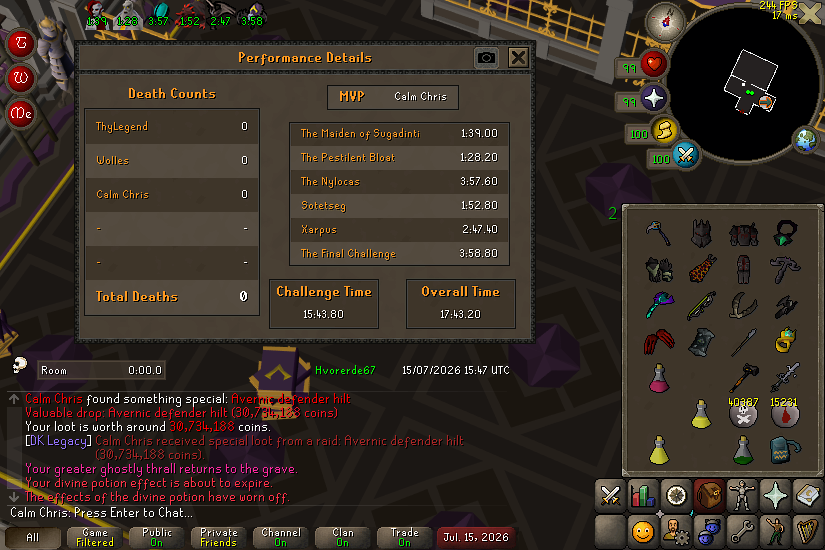
Submit from your team board: choose a tile and the qualifying drop or manual completion, then send clear evidence for review.
- Open your team tileGo to your team tile on the event board and open the drop you want to submit.
- Choose the drop and playerOrdinary members credit themselves. Captains and co-captains may select a current teammate.
- Attach a clear screenshotThe server records the credited player's active playing character. There is no account selector. Attach one PNG, JPEG, or WebP screenshot up to 10 MB, with an optional note.
- Send for reviewSubmit drop creates Pending evidence. It counts only after approval.
Submission form
NextTrack the review
Track the review
Team history shows retained submissions, their status, and reviewer feedback. It is the authoritative place to follow what happens next.
- Pending
- There is no count yet. When eligible, the credited owner may correct details, replace the screenshot, or withdraw.
- approved
- The submission counts and its evidence becomes public.
- Rejected
- The submission does not count. Its detail shows the reviewer's reason.
While the upload window is open, a pending submission may correct its tile, drop, or note, replace its screenshot, or be withdrawn. Rejected submissions remain in history, and every later attempt is a new ordinary submission reviewed on its own.
Rejection notifications link the authorized credited participant and current captains or co-captains to the detail. Notifications are not promised for every approval or status change.